How to Disable Hyper-Threading on Intel CPUs (And Does It Improve FPS?)
Many gamers and PC enthusiasts tweak their system to squeeze out every bit of performance. One setting that often comes up in discussions is Hyper-Threading. Some players disable it to reduce CPU scheduling conflicts in games.
In this guide, we’ll explain what Hyper-Threading is, how to disable it, and whether it actually improves FPS in games.
What Is Hyper-Threading?
Hyper-Threading is a technology developed by Intel that allows a single CPU core to run two threads at the same time.
For example:
CPU Cores Threads Without Hyper-Threading88With Hyper-Threading816
This helps with multitasking and productivity workloads, such as video editing, rendering, and heavy background tasks.
However, some competitive gamers believe disabling it can sometimes improve latency consistency.
Does Disabling Hyper-Threading Improve FPS?
In most modern games, the FPS difference is very small.
Possible effects when disabling Hyper-Threading:
Potential Benefits
Slightly more consistent 1% lows
Reduced CPU scheduling conflicts
Lower CPU temperatures in some cases
Potential Downsides
Lower performance in multitasking
Lower performance in CPU-heavy games
Slower productivity workloads
For competitive titles like Counter-Strike 2, Fortnite, or Valorant, some players prefer Hyper-Threading disabled for slightly more consistent frame pacing.
But the improvement is usually small and system-dependent.
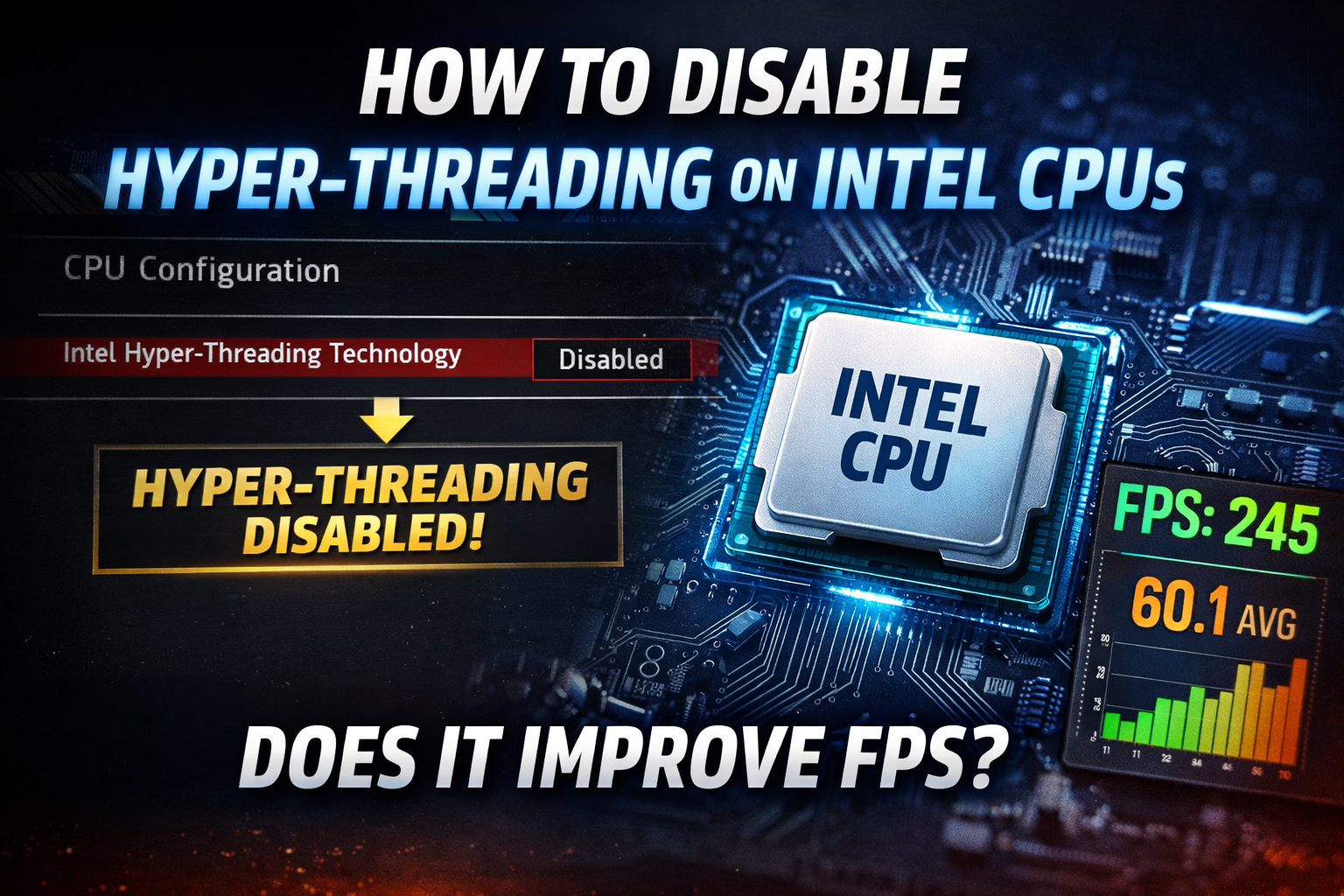
How to Disable Hyper-Threading in BIOS
If your CPU supports Hyper-Threading, you can disable it through your motherboard BIOS.
Typical steps:
Restart your PC
Enter BIOS (press Delete or F2 during boot)
Go to Advanced Mode
Navigate to:
Advanced
 → CPU Configuration
 → Intel Hyper-Threading Technology
Set it to Disabled
Save and exit BIOS
After rebooting, your CPU will run one thread per core.
Why You Cannot Disable Hyper-Threading on Intel Core Ultra CPUs
On the newest Intel desktop processors like Intel Core Ultra 9 285K, Hyper-Threading no longer exists.
These CPUs use a new architecture that completely removes the feature.
Example core layout:
Core Type Count Performance Cores8Efficiency Cores16Total Cores24Total Threads24
Since each core only runs one thread, there is no Hyper-Threading option in BIOS.
So if your system shows 24 cores and 24 threads, that means Hyper-Threading is already effectively disabled by design.
Should Gamers Disable Hyper-Threading?
For most players:
Leave it enabled if your CPU supports it.
Only experiment with disabling it if:
You play competitive esports titles
You want to test for smoother frame pacing
Your CPU has very high thread counts
Every system behaves differently, so the best approach is testing both settings.
Need Help Optimizing Your Gaming PC?
If your games are stuttering, lagging, or not using your hardware properly, proper system optimization can make a huge difference.
At ASB Gaming, we specialize in gaming PC optimization to improve FPS, reduce input delay, and eliminate stutters.
You can learn more at:
https://www.asbgaming.com/