Low Ping Won't Save Your FPS (Here's What Actually Will)
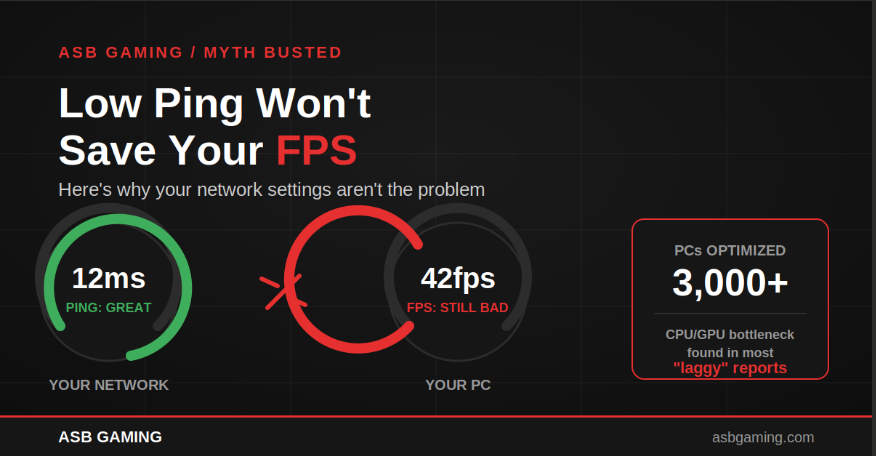
I get this message almost every week: "My ping is like 15ms, why is my game still stuttering?"
I get it. Ping is the number everyone obsesses over. It's right there in the corner of your screen, green and reassuring, telling you your connection is perfect. So when the game still feels rough, it's natural to assume the network must be lying to you.
It's not. Ping and FPS are two completely different systems, and after optimizing 3,000+ PCs, I can tell you the FPS problem almost never lives in your router.
Ping and FPS Aren't Measuring the Same Thing
Ping measures how fast data travels between your PC and the game server. FPS measures how fast your CPU and GPU can render and push out frames. One is about your internet connection. The other is about your hardware doing math.
You can have a 5ms ping to the server and still drop to 50 FPS in a firefight, because the bottleneck isn't the trip to the server, it's your CPU choking on the number of players, effects, and physics calculations happening on your end at that exact moment.
I see this constantly with Warzone players specifically. Someone's ping sits at a beautiful 12ms the entire match, but their FPS tanks the second they hit a populated area like Downtown or Rebirth. That's not a network issue. That's your CPU getting overwhelmed by everything rendering on screen.
What Low Ping Actually Fixes
To be clear, low ping absolutely matters. It controls:
How fast your inputs register on the server (hit registration)
Whether you experience rubber-banding or warping
How consistent your shots feel in close-range fights
What it does NOT control is how smooth the game looks or feels frame to frame. You can have perfect hit registration and still be looking at a slideshow if your PC can't keep up rendering-wise.
Three Free Fixes That Actually Move FPS
Before you touch a single network setting, try these. These are the same first three things I check on every PC that comes through ASB Gaming.
1. Check what's fighting your GPU in the background. Discord overlay, browser tabs with hardware acceleration on, RGB software, and game launchers running in the background all eat into your frame budget. Task Manager, sort by GPU usage, close anything you don't need open during a match.
2. Set your power plan to High Performance (or Ryzen Balanced if you're on AMD). Windows defaults to balanced power plans that throttle your CPU clock speed to save energy. On a gaming PC, that's actively working against you. This alone has recovered 15-20 FPS for clients who'd never touched it.
3. Cap your in-game FPS slightly below your monitor's refresh rate. Uncapped FPS forces your GPU to work at maximum even when it doesn't need to, which increases heat, increases coil whine, and can actually introduce more frame time inconsistency than a sensible cap would. If you've got a 144Hz monitor, capping at 141 often feels smoother than uncapped.
A Real Example
Had a client a few months back, solid internet, fiber connection, 8ms ping average, swore his FPS issues were a network problem because his ISP support team kept blaming "packet loss" without ever actually checking. Ran a free PC check: background processes eating 22% GPU usage at idle, power plan set to Balanced, drivers two versions out of date. After cleanup his FPS went from a choppy 60-80 range to a locked 144. His ping never changed. It was never the network.
The Real Takeaway
If your ping is green and your game still feels bad, stop chasing router settings and start looking at what your CPU and GPU are actually doing during gameplay. Nine times out of ten, that's where the real fix is hiding.
Before you spend a dollar on optimization, get a free PC check in our Discord. We'll look at what's actually going on first, sometimes the honest answer is your hardware is just old and due for an upgrade, and we'll tell you that straight up instead of taking your money for something that won't move the needle. If the check shows it's a software/config issue (which it usually is), that's when our PC Optimization service ($75) or Windows Optimization ($35) actually makes sense, and you'll know exactly what you're paying to fix.