Why Warzone Feels Laggy Even With High FPS (And How to Fix It)
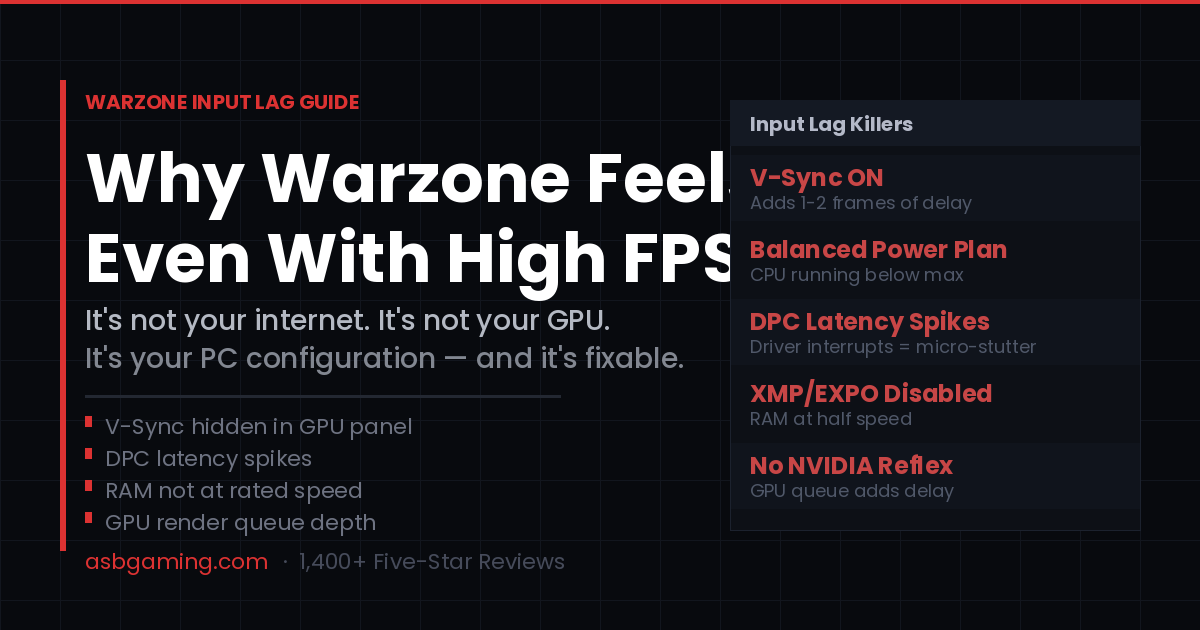
This is the most common thing I hear from clients.
"My FPS looks fine but the game still feels terrible."
They're not wrong. Their FPS counter says 200. But the game feels sluggish, shots feel delayed, and something just feels... off. This is actually one of the most misunderstood problems in PC gaming — and it's 100% fixable.
High FPS on a counter does not always mean low input delay. Let me explain what's actually happening.
FPS and Input Lag Are Not the Same Thing
Your FPS counter tells you how many frames your GPU is rendering per second. That's it.
Input lag is how long it takes from the moment you move your mouse to the moment that action shows up on screen. You can have 200 FPS and still have terrible input lag if your system isn't configured correctly.
In Warzone — where a gunfight is decided in milliseconds — input lag is everything.
The Real Reasons It Feels Bad
1. V-Sync Is On
This is the biggest offender. V-Sync locks your framerate to your monitor's refresh rate and adds a buffer that introduces 1–2 frames of delay. In a game like Warzone that's massive.
Turn it off. In game settings AND in your GPU control panel. Both.
2. Wrong Power Plan
Windows defaults to a balanced power plan that throttles your CPU to save electricity. Your CPU is literally running slower than it should during gameplay.
Switch to High Performance — or better yet, a custom gaming power plan. This alone makes a noticeable difference in how responsive the game feels.
3. DPC Latency Spikes
This one most people have never even heard of. DPC (Deferred Procedure Call) latency is caused by hardware drivers sending interrupts to your CPU at bad times. When this spikes, it creates micro-stutters and delayed inputs — even if your FPS counter never drops.
I check DPC latency on every single PC I work on. Faulty network drivers, audio drivers, and USB drivers are the most common culprits.
4. GPU Render Queue is Too Deep
Modern GPUs queue up frames to keep the pipeline full. Great for raw performance numbers — bad for competitive gaming because it means you're seeing frames that were rendered slightly in the past.
Setting NVIDIA Reflex to "On + Boost" or enabling AMD Anti-Lag removes this queued delay and makes inputs feel immediate. This is one of the most impactful settings you can change in Warzone right now.
5. RAM Not Running at Full Speed
If your RAM is running at default JEDEC speed (usually 2133 or 2400 MHz) instead of its rated speed (4800, 6000, 6400 MHz+), your CPU is starved for data. This especially kills performance on AMD systems where the CPU and memory speeds are tightly linked.
Enable XMP or EXPO in your BIOS. Your RAM has a sticker on it saying 6000 MHz for a reason — it's not running at that speed until you turn it on manually.
6. In-Game Settings Causing Frame Pacing Issues
Certain Warzone settings cause uneven frame delivery — where frames aren't arriving at consistent intervals even if the average FPS looks fine. Uneven frame pacing feels worse than slightly lower but consistent FPS.
The culprit is usually a combination of shadows, texture streaming, and async compute settings not matching your GPU's architecture. These need to be tuned per GPU, not copied from a generic YouTube guide.
What It Feels Like After Fixing It
Every client I work on who complains about "feels laggy" walks away saying the same thing:
"I didn't realise how bad it was until now."
The game snaps. Shots register when they should. Movements feel 1:1 with your hands. That's what Warzone is supposed to feel like on a properly configured PC.
My Process
When a client comes to me with this exact problem, here's what I check:
V-Sync status (game + GPU panel)
Power plan configuration
DPC latency scan — identify and fix the driver causing spikes
NVIDIA Reflex or AMD Anti-Lag settings
XMP/EXPO enabled in BIOS
Frame pacing — in-game settings tuned for their specific GPU
Monitor settings — making sure it's actually running at full refresh rate
USB polling rate for mouse
Most of the time it's a combination of 3–4 of these. Fix them all together and the difference is night and day.
Not Sure What's Causing It on Your PC?
That's exactly what the free PC check is for. I'll look at your setup, run the diagnostics, and tell you exactly what's wrong before you spend a single dollar.
No guessing. No generic advice. Just the actual fix for your actual PC.
Book Your Free PC Check → asbgaming.com
Or message me directly on Discord: discord.com/invite/asbgaming
ASB has optimized 3,000+ gaming PCs and holds FACEIT Level 10 in CS2. Every session is done personally — no scripts, no outsourcing.