June 22, 2026
ASB Gaming
Why Your PC Has Low FPS Even on Low Settings (It's Not Your GPU)
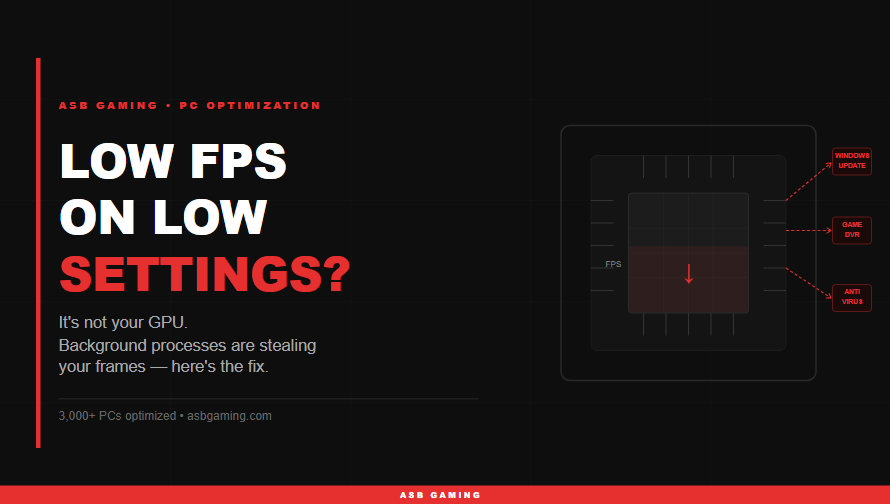
You turned everything to low. Resolution down. Shadows off. Textures on minimum. Your GPU should be laughing right now.
Instead, you're dropping frames in every gunfight.
I've seen this exact situation on hundreds of PCs. Guys come to me thinking they need a new graphics card. Nine times out of ten, the GPU is barely being used. The real problem is sitting in the background — hidden processes quietly stealing CPU time, RAM, and disk bandwidth while you're in the middle of a match.
I've personally optimized over 3,000 PCs at ASB Gaming. This is one of the most common patterns I see, and it's almost always fixable for free.
Your GPU Being Idle Doesn't Mean Your PC Is Fast
Here's the thing most people don't understand: low settings reduce GPU load, not CPU load. When you drop your graphics settings, your GPU does less work — which means it renders frames faster and waits for the CPU to keep up.
If your CPU is busy handling background processes while your GPU sits there waiting, you hit what's called a CPU bottleneck. Frames tank. The GPU isn't the problem. The CPU is drowning in tasks you never asked it to do.
This is why your GPU usage can show 30–40% in task manager while you're getting 60 FPS in a game that should push 200+.
The Worst Offenders Running Right Now
Here's what I find eating frames on almost every PC I work on:
Windows Update — It doesn't just download updates. It can actively install them, run compatibility scans, and rebuild indexes in the background. All of this is CPU and disk-heavy and happens completely silently.
Xbox Game Bar & Game DVR — This is turned on by default on almost every Windows 10 and 11 system. It records your screen in the background constantly, even if you never use it. That's continuous GPU encode overhead on top of your actual game rendering.
Discord overlays and hardware acceleration — Discord's hardware acceleration forces the GPU to render the overlay separately from your game. Combined with the in-game overlay, you're adding GPU load for a chat app.
Antivirus real-time scanning — This one's sneaky. When your game loads new map assets, streams textures from the SSD, or writes temp files, the antivirus is scanning those files in real time. This creates disk read spikes that stall the game engine.
OneDrive, Google Drive, Dropbox sync — If you save anything to a synced folder and these apps decide to upload mid-game, disk bandwidth gets split. You'll see one-second stutters that look like network lag but aren't.
Browser tabs with video or JavaScript — An open YouTube tab continues decoding video in the background. Chrome's GPU process alone can consume 200–400MB of VRAM and several percentage points of CPU.
3 Free Fixes You Can Do Right Now
Fix 1: Kill the Obvious Background Processes Before You Launch
Press Ctrl + Shift + Esc to open Task Manager. Sort by CPU usage. Before every session, close:
Any browser (Chrome especially — close it completely, don't minimize)
OneDrive / Google Drive / Dropbox (right-click the tray icon → Quit)
Discord if you don't need the overlay (use the web version or phone app instead)
Any streaming or download software (Steam updates, Epic Games store)
This alone drops background CPU usage from 15–25% down to under 5% for most people. That's 15–25% more CPU headroom for your game.
Fix 2: Disable Xbox Game Bar and DVR
Go to Settings → Gaming → Xbox Game Bar and turn it off.
Then go to Settings → Gaming → Captures and turn off "Record in the background while I'm playing a game."
On Windows 11, also check Settings → Gaming → Game Mode — keep Game Mode ON, but make sure DVR and captures are off. Game Mode tells Windows to prioritize game threads. DVR tells Windows to record everything secretly. You want one without the other.
Fix 3: Disable Startup Programs That Relaunch Every Boot
Press Ctrl + Shift + Esc → Startup tab. You'll find a list of everything that launches when Windows starts. Common unnecessary culprits:
Spotify
Discord (you can launch it manually when needed)
Teams / Zoom / Slack if you don't use them for gaming
OneDrive
Epic Games launcher
Any manufacturer software (Realtek HD Audio Manager, Intel Management Engine, Razer Synapse if you don't have Razer hardware)
Disable anything you don't actively need running at startup. These programs don't just use resources — they also slow down boot time, delay game launch, and sometimes re-inject background processes after you've already killed them.
A Real Example From Last Month
Client came to me with a Ryzen 5 5600X and an RTX 3070. Should be hitting 200+ FPS in Warzone on low settings. He was getting 80–100 with regular stutters.
Task Manager showed his CPU sitting at 35–40% usage outside the game, before he even launched anything. Windows Update was running a background scan. Microsoft Teams was open and syncing. Chrome had 14 tabs open including two YouTube videos.
We closed Chrome, paused Teams, paused Windows Update, and disabled Game DVR. FPS jumped from 85 to 190 in the first match. Same hardware. Same settings. Nothing changed except what was running in the background.
The RTX 3070 was never the problem.
When to Check If It's Actually a Hardware Issue
If you've done all three fixes and you're still dropping frames, that's when we look deeper. I offer a free PC check at ASB Gaming before charging anyone for anything — if the issue is hardware (dying CPU, RAM running at wrong speeds, thermal throttling), I'll tell you straight and point you in the right direction. No service charge, no pressure.
If it is a software problem we can fix, the full PC optimization starts at $75 and has helped over 3,000 clients get their frames back.
👉 Book your free PC check at asbgaming.com
Bottom Line
Low FPS on low settings is almost never a hardware problem. It's a background process problem. Windows is doing things behind the scenes you never asked for, and it's costing you frames in every match.
Kill your browser before launching. Disable Game DVR. Clean up your startup programs. Most people recover 50–100 FPS doing exactly this — on the same hardware they were about to replace.
If it doesn't fix it, come find me. The check is free.
— Asb, ASB Gaming