June 27, 2026
By ASB Gaming | asbgaming.com
Why Your CPU Is Bottlenecking Your GPU (And Killing Your FPS in Warzone)
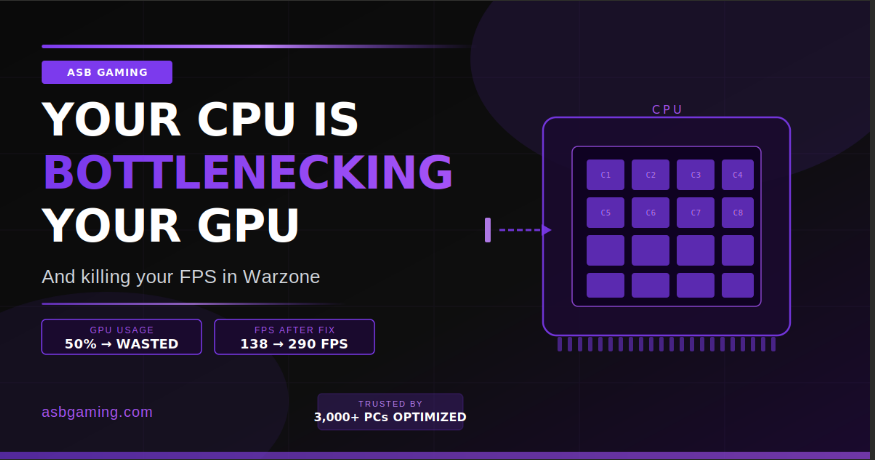
I got a message last week from a guy who just dropped $700 on an RTX 4070 Ti. Warzone was running at 130 FPS before. After the upgrade? 138 FPS.
He was devastated. Thought he got a defective card. Sent me his specs and I spotted the problem immediately — he paired his brand new GPU with a 4-core CPU from 2017.
He didn't have a GPU problem. He had a CPU bottleneck. And it was eating 90% of the performance that new card was capable of.
This is one of the most common — and most expensive — mistakes I see after optimizing 3,000+ PCs. So let me break it down properly.
What Is a CPU Bottleneck, Actually?
Your CPU and GPU have to work as a team. The CPU handles game logic — AI, physics, player positions, hit detection, rendering instructions. The GPU takes those instructions and draws the frames.
When your GPU is ready to render a new frame but the CPU is still preparing the data it needs, the GPU sits idle and waits. That waiting = your FPS cap.
Think of it like a McDonald's where the grill (GPU) can cook 500 burgers an hour, but the cashier (CPU) is only taking 150 orders an hour. The grill isn't the problem. The bottleneck is at the front counter.
In Warzone specifically, this is a massive issue because the game is heavily CPU-dependent. It's processing a 150-player lobby, massive open-world map data, and real-time physics constantly. Weak CPU = low FPS no matter how powerful your GPU is.
The Signs You Have a CPU Bottleneck
1. GPU usage is low but FPS is still low
Open Task Manager or MSI Afterburner while gaming. If your GPU usage is sitting at 50-70% and your FPS is still terrible, that's a textbook CPU bottleneck. A fully utilized GPU sits at 98-100%. Anything lower means the GPU is waiting on the CPU.
2. FPS doesn't change when you lower settings
Dropped from Ultra to Low settings and your FPS barely moved? That's because lowering graphics settings reduces GPU load — but if the CPU is already the bottleneck, freeing up the GPU doesn't help. The CPU is still the limiting factor.
This is actually one of the first things I check when a client says "my FPS is terrible even on low settings." Nine times out of ten, it's a CPU issue or a software issue — not the GPU.
3. FPS spikes when a lot happens on screen
Explosions, multiple players, smoke, vehicles — these all hammer the CPU hard. If your FPS tanks specifically during these moments (not just in general), your CPU is choking under load.
Three Things You Can Do Right Now
Fix #1: Check Your CPU Usage While Gaming
This sounds obvious but most people never do it. Open Task Manager (Ctrl + Shift + Esc), go to Performance tab, and watch CPU usage while you're in a Warzone match.
If you're hitting 90-100% CPU usage consistently, you've confirmed the bottleneck. If it's sitting at 40%, the CPU isn't the problem and you need to look elsewhere.
You can also use MSI Afterburner + RivaTuner to get an in-game overlay showing both CPU and GPU usage in real time. Set that up and watch the numbers. The data doesn't lie.
Fix #2: Set CPU Priority for Warzone
This is a free tweak that actually helps on mid-range CPUs. It tells Windows to give Warzone priority over background processes when distributing CPU resources.
Open Task Manager while Warzone is running → Details tab → find the Warzone process → right-click → Set Priority → High.
Do not set it to Realtime. High is enough. Realtime can make your system unstable.
This won't fix a severe bottleneck, but on a CPU that's borderline, it can buy you 10-20 extra FPS.
Fix #3: Optimize Your Windows CPU Scheduling
Windows by default uses a "balanced" power plan that throttles CPU performance to save energy. If you're on a laptop or even a desktop that's never had its power settings changed, you're leaving performance on the table.
Go to Control Panel → Power Options → select "High Performance." If you have an AMD CPU, look for the "AMD Ryzen High Performance" plan instead — it's tuned specifically for Ryzen chips.
Also check: Windows Settings → System → Display → Graphics → turn on "Hardware-accelerated GPU scheduling" (HAGS). On modern GPUs with good drivers, this reduces CPU overhead by offloading some GPU scheduling work.
The Real Fix: CPU Compatibility
Here's the hard truth — software tweaks can help at the margins, but if you're rocking a 4-core CPU from 2017-2018, there's a ceiling on what's possible.
Warzone in 2025 benefits massively from modern high-core-count CPUs. The Ryzen 7 5800X3D, 7800X3D, and the 9800X3D are the kings right now for gaming. The 3D V-Cache tech specifically helps with the massive open-world game data that Warzone streams constantly.
On a Ryzen 9800X3D paired with an RTX 5080, I've pushed 300+ real FPS in Warzone (not framegen — real frames, no input lag). That's the ceiling when your CPU and GPU are actually matched.
The guy who messaged me with the RTX 4070 Ti? He upgraded his CPU to a Ryzen 7 5700X3D the following month. Went from 138 FPS to 290 FPS. Same GPU he thought was defective.
Before You Buy Anything — Get a Free PC Check
Here's what I always tell people: don't spend money until you know exactly what's wrong.
I offer a free PC check at asbgaming.com before any paid service. I'll look at your actual specs and tell you straight — whether it's a CPU bottleneck, a GPU bottleneck, a software issue, or something else entirely. If it turns out your hardware is the problem, I'll say so. I won't take your money to "optimize" something that actually needs an upgrade.
If it's a software issue — and honestly, it often is even on older hardware — my Windows optimization service ($35) or full PC optimization ($75) can fix it. I've taken PCs that were limping at 80 FPS and pushed them to 180+ without touching a single piece of hardware.
But first, let's find out what you're actually dealing with.