August 23, 2026
ASB Gaming
Why 800 FPS Can Feel Worse Than 400 FPS in Warzone
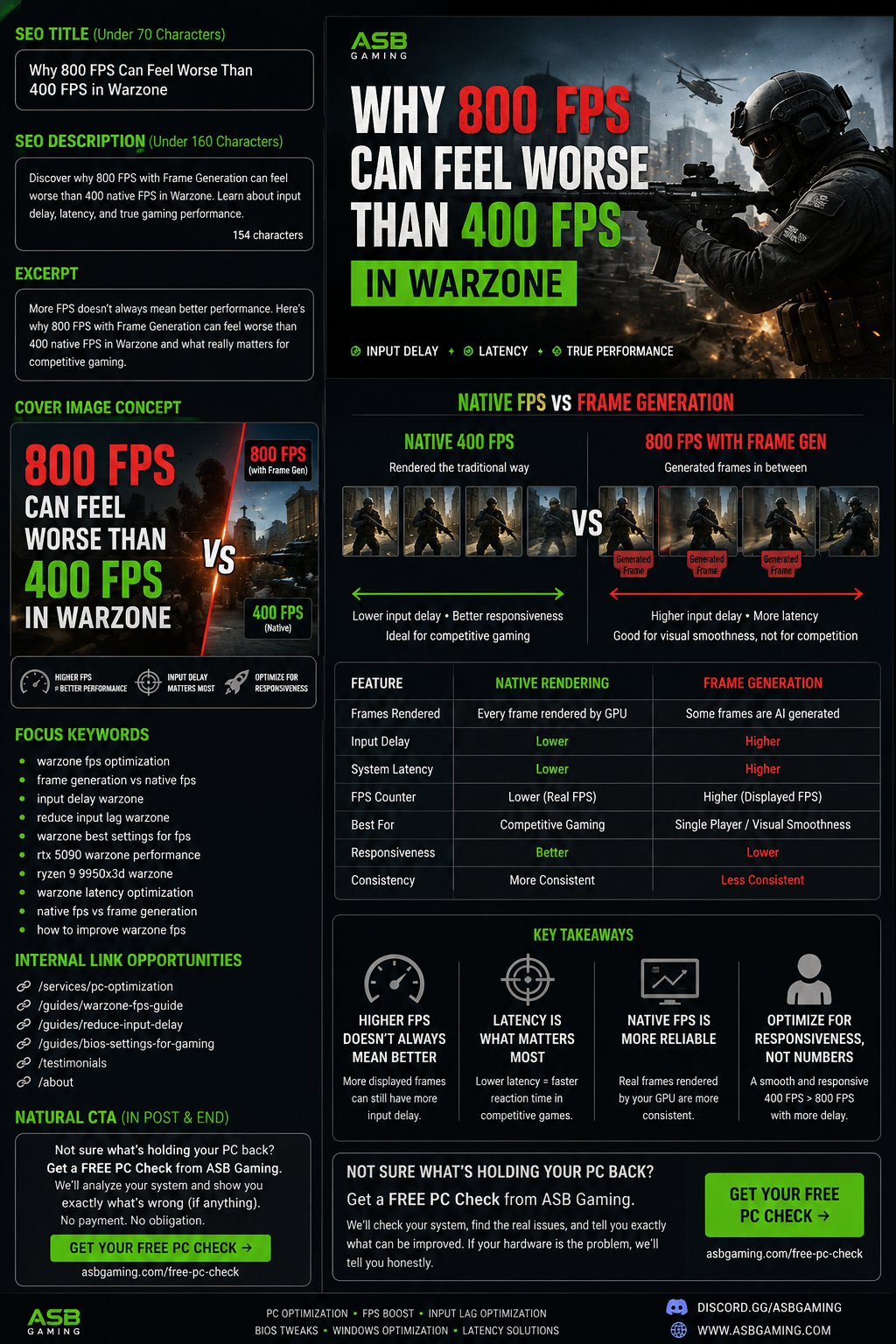
Seeing 600, 700, or even 800 FPS in Call of Duty: Warzone sounds incredible.
But there is an important question competitive players should ask:
Are those frames actually improving your gaming experience, or is the FPS counter simply showing you a bigger number?
Recently, I worked with a Warzone player using an extremely powerful gaming PC with an NVIDIA RTX 5090 and Ryzen 9 9950X3D. His PC was already partially optimized, his GPU had been overclocked, and he was getting around 600 FPS in Warzone.
He came to me because he was experiencing input delay and wanted his system properly optimized.
After checking the PC, BIOS, drivers, Windows configuration, latency and other performance settings, I optimized the system and ran before-and-after latency tests.
The results were good.
But then something unexpected happened.
The client tested Warzone and noticed that his FPS had dropped from around 600 FPS to approximately 350–400 FPS.
He immediately thought something was wrong.
It wasn't.
The difference was Frame Generation.
The Problem With Chasing the Biggest FPS Number
Frame Generation can make the FPS counter look dramatically higher by generating additional frames between traditionally rendered frames.
That can be useful in certain situations.
For example, if you're playing a graphically demanding single-player game and your native FPS is relatively low, Frame Generation can make the game appear significantly smoother.
But competitive shooters are different.
When you're playing games like Warzone competitively, FPS isn't the only number that matters.
Input latency, frame consistency, system latency, GPU latency and how quickly your physical input reaches the game all matter.
This is why a higher FPS number doesn't automatically mean a better competitive gaming experience.
The Real-World Warzone Example
In this particular case, the PC was already extremely powerful.
The system had:
NVIDIA RTX 5090
AMD Ryzen 9 9950X3D
High-end gaming hardware
GPU overclocking already configured
Warzone as the primary competitive game
After optimization, the system was producing roughly 350–400 FPS without Frame Generation.
For a game as demanding as Warzone, that is already an extremely high native frame rate.
However, the client was used to seeing around 600 FPS because Frame Generation had previously been enabled.
So naturally, when he saw 350–400 FPS, he thought the optimization had made his PC slower.
In reality, the opposite was happening.
He was now looking at the native rendering performance of his hardware, rather than relying on generated frames to increase the number displayed by the FPS counter.
What Is Frame Generation?
Frame Generation is a technology that generates additional frames using information from previously rendered frames.
Instead of the GPU rendering every displayed frame traditionally, the technology can create an intermediate frame based on existing visual information and motion data.
The result?
Your FPS counter can increase significantly.
For example:
Native rendering:
230 FPS → 400 FPS
With Frame Generation:
600 FPS → 800 FPS
That sounds like a massive improvement.
But there is an important distinction:
Displayed FPS and rendered frames are not exactly the same thing.
This is why competitive gamers shouldn't judge system responsiveness purely by looking at the FPS counter.
Native FPS vs Frame Generation
FeatureNative RenderingFrame GenerationFrames rendered traditionallyYesNot every displayed frameFPS counterLowerOften much higherVisual smoothnessExcellent at high FPSCan appear smootherInput responsivenessGenerally betterCan introduce additional latencyCompetitive gamingUsually preferredSituationalSingle-player gamingExcellentOften usefulGPU workloadHighCan improve perceived FPSBest use caseCompetitive/high-FPS gamingVisual smoothness when native FPS is limited
The important point isn't that Frame Generation is a bad technology.
It isn't.
The technology is impressive.
The problem is using it for the wrong purpose.
Why Competitive Players Care About Input Delay
Imagine moving your mouse.
You move the mouse.
The game receives that input.
The CPU and GPU process the frame.
The image is displayed on your monitor.
Every part of this chain contributes to your overall responsiveness.
In competitive games, even small differences can matter.
When you're trying to track an enemy, react to a player appearing around a corner, control recoil, or make a fast flick, you generally want your system responding as quickly and consistently as possible.
That's why competitive players often prioritize:
Low input latency
Consistent frame times
High native FPS
Stable CPU performance
Stable GPU performance
Proper BIOS configuration
Correct drivers
Windows optimization
Low background activity
A properly configured monitor
Correct NVIDIA Reflex/latency settings where applicable
The goal isn't simply:
"Get the biggest FPS number possible."
The goal is:
"Make the game respond as quickly and consistently as possible."
But Isn't 800 FPS Better Than 400 FPS?
This is where things get complicated.
If both numbers represented the exact same type of traditionally rendered frames under identical conditions, higher FPS would generally be better.
But when Frame Generation is involved, the comparison isn't that simple.
A jump from 400 native FPS to 800 FPS with generated frames doesn't mean the entire system suddenly became twice as responsive.
The FPS counter has increased, but that doesn't mean your mouse input is being processed twice as quickly.
This is one of the biggest misunderstandings surrounding Frame Generation.
More displayed frames does not automatically mean less input latency.
What Happened When We Tested Frame Generation
After explaining how Frame Generation worked, I offered the client another option.
If he preferred seeing the higher FPS number, I could enable Frame Generation again.
So we tested it.
With Frame Generation enabled, his FPS increased from approximately:
350–400 FPS → around 800 FPS
Understandably, he was happy.
Seeing 800 FPS on a high-end PC looks incredible.
But I still explained that the number itself wasn't the entire story.
We also compared latency.
The system's measured latency increased significantly when Frame Generation was enabled in this particular configuration.
The client could still play the game smoothly, but there was a difference between smoothness and responsiveness.
That's an important distinction.
Smooth Does Not Always Mean Responsive
This is something many gamers don't realize.
A game can look incredibly smooth while still having higher input latency.
Your eyes may see more apparent motion.
But your mouse movement doesn't necessarily become more immediate.
That's why competitive players should pay attention to both:
Visual smoothness
and
System responsiveness
They are related, but they aren't identical.
For casual gaming, visual smoothness may be the priority.
For competitive gaming, responsiveness can be much more important.
So Should You Never Use Frame Generation?
No.
That's not the correct conclusion.
Frame Generation has legitimate uses.
If you're playing a single-player game with demanding graphics and your native FPS isn't high enough, Frame Generation can provide a smoother-looking experience.
It can also be useful when your goal is visual quality rather than the lowest possible latency.
For example, someone playing a cinematic single-player game at high resolution may happily choose Frame Generation.
Competitive Warzone is a different situation.
If your PC is already capable of producing 300–400+ native FPS, there is usually much less reason to prioritize generated frames simply to make the FPS counter display an even larger number.
At that point, latency and frame consistency deserve much more attention.
The FPS Counter Isn't the Whole Story
One of the biggest mistakes I see during PC optimization is focusing entirely on FPS.
A client might say:
"My PC gets 600 FPS, so why does the game still feel delayed?"
That's a perfectly reasonable question.
FPS is important, but it is only one part of gaming performance.
A properly optimized gaming PC should also be evaluated for:
CPU performance
Is the CPU maintaining the expected clocks?
Is it thermal throttling?
Are power limits restricting performance?
Is the game CPU-bound?
GPU performance
Is the GPU actually being utilized correctly?
Are drivers configured properly?
Is the GPU power limit restricting performance?
Are unnecessary features increasing latency?
RAM
Is XMP/EXPO enabled?
Is the memory running at the correct frequency?
Are timings configured properly?
BIOS
Are important CPU and motherboard settings configured correctly?
Are power limits appropriate?
Is the BIOS up to date?
Windows
Are unnecessary background processes running?
Are drivers installed correctly?
Are power settings appropriate?
Are unnecessary overlays and applications affecting the system?
Latency
What does LatencyMon show?
What is the system latency?
What is the GPU/CPU latency?
Are there driver-related latency problems?
This is why proper PC optimization is much more than simply changing a few Windows settings.
Why Your High-End PC Can Still Have Input Lag
A common misconception is:
"I have a $4,000 PC, so I shouldn't have input delay."
Unfortunately, expensive hardware doesn't automatically mean an optimized system.
A high-end PC can still have:
Incorrect BIOS settings
Poor driver configuration
Unnecessary background processes
Incorrect GPU settings
CPU power restrictions
Thermal problems
Poor RAM configuration
Driver latency
Incorrect game settings
Frame-generation settings that aren't appropriate for the game
Monitor configuration problems
Windows configuration issues
That's why optimization should be based on testing rather than simply applying a random "FPS boost" preset.
Don't Optimize for the FPS Counter — Optimize for the Game
This is the biggest lesson from this particular client.
When he first saw 350–400 FPS, he thought his PC was performing worse.
After understanding what was actually happening, he realized that his PC was already producing an extremely high native frame rate.
The goal wasn't to make the FPS counter look bigger.
The goal was to make the system:
Fast. Stable. Responsive. Consistent.
That's what matters in competitive gaming.
When Should You Use Frame Generation?
A simple rule of thumb:
Consider Frame Generation when:
You're playing a graphically demanding game.
Native FPS is relatively low.
You're prioritizing visual smoothness.
You're playing mostly single-player games.
Additional latency isn't a major concern.
Consider avoiding Frame Generation when:
You're playing competitively.
Your native FPS is already very high.
Lowest possible latency is your priority.
You're playing fast-paced shooters.
You care more about responsiveness than maximum displayed FPS.
There isn't one setting that's perfect for every gamer.
Your hardware, game, monitor, resolution and priorities all matter.
What About a 240Hz or 360Hz Monitor?
This is another important point.
If you have a 240Hz monitor, you don't necessarily need an 800 FPS counter to have a great gaming experience.
Higher FPS can still reduce frame time and improve responsiveness, but the benefits become increasingly dependent on the rest of your system and the game's workload.
For competitive players, a stable and responsive 300–400 FPS can be far more meaningful than simply chasing a huge FPS number through additional frame generation.
Again, the goal is not:
"How high can I make the FPS counter go?"
The better question is:
"How responsive can I make the entire system?"
A Proper PC Optimization Should Start With Testing
Before changing dozens of settings, you should know what is actually wrong with the PC.
That's why I recommend testing first.
At ASB Gaming, I offer a Free PC Check before paid optimization.
You don't have to pay just for me to tell you that your hardware is outdated or that something is wrong.
I can check your system and help identify things such as:
Hardware limitations
CPU/GPU bottlenecks
Driver problems
BIOS configuration issues
RAM configuration
Thermal problems
Performance limitations
Latency problems
Windows configuration issues
If your hardware is too old or something needs to be replaced, I'll tell you.
If the PC can be improved through optimization, I'll explain what can be done.
The goal is simple:
Don't spend money on optimization if your hardware is the actual problem.
Final Thoughts
The Warzone player in this case had an RTX 5090 and Ryzen 9 9950X3D.
His PC was already extremely powerful.
Yet he was still experiencing input delay.
The interesting part wasn't the hardware.
It was the way the system had been configured.
Frame Generation had made his FPS counter look dramatically higher, but that didn't automatically mean his system was more responsive.
After optimization, he was getting around 350–400 native FPS.
When Frame Generation was enabled again, the number increased to around 800 FPS.
But the higher number wasn't necessarily the better competitive experience.
Eventually, after testing the game properly, he was happy with the native performance.
And that's the most important lesson:
Don't judge your gaming PC by the FPS counter alone.
For competitive gaming, FPS, frame time, latency, stability and responsiveness all matter.
Sometimes 400 real, responsive frames are more valuable than 800 displayed frames.
Frequently Asked Questions
Does Frame Generation increase input delay?
Frame Generation can add latency depending on the technology, implementation and system configuration. For competitive gaming, players who prioritize the lowest possible latency should test it carefully rather than assuming a higher FPS counter means lower input delay.
Is Frame Generation good for Warzone?
It depends on your hardware and what you prioritize. If your system already produces very high native FPS, competitive players may prefer native rendering because responsiveness is usually more important than maximizing the displayed FPS number.
Is 400 FPS better than 800 FPS with Frame Generation?
Not necessarily in every situation, but 800 FPS with Frame Generation does not mean the system is twice as responsive as 400 native FPS. For competitive gaming, native performance and latency should be considered alongside the FPS number.
Does higher FPS reduce input delay?
Generally, higher native FPS can reduce frame time and improve responsiveness. However, the overall experience also depends on CPU performance, GPU performance, game settings, monitor refresh rate, drivers and other parts of the system.
Should I use Frame Generation on a high-end gaming PC?
If your PC already produces extremely high native FPS and your priority is competitive gaming, you may prefer native rendering. If you're playing a demanding single-player game and want smoother visuals, Frame Generation can be a useful option.
Why does my game feel delayed even though I have high FPS?
High FPS doesn't guarantee low system latency. Drivers, BIOS settings, Windows configuration, GPU settings, CPU behavior, background processes, frame-generation technology and other factors can affect responsiveness.
How can I reduce input delay in Warzone?
Start by checking the entire system instead of changing random settings. Check BIOS configuration, CPU/GPU performance, drivers, Windows configuration, game settings, monitor settings and system latency. Measure performance before and after making changes.
Need Help With Your Gaming PC?
Not sure whether your PC actually needs optimization?
Get a Free PC Check from ASB Gaming.
I'll check your system first and help identify whether the problem is your hardware, Windows, drivers, BIOS, game settings or something else.
If your hardware is too old or needs replacing, I'll tell you honestly.
If your PC can be improved through optimization, I'll explain what can be done.
Don't waste money guessing what's wrong with your PC. Get it checked first.
ASB Gaming — PC Optimization, FPS Boost & Input Latency Optimization for Competitive Gamers.